PixelBatch
Watch Folder
Auto-process new files dropped into a folder. Pro only.
What it is
Watch Folder is a Pro rule: PixelBatch watches an input directory, applies one template (and optional AI), and writes results to an output directory. Photographers and warehouse teams use it so a card dump becomes listing files without opening the import wizard each time.
Free licenses can open the page but cannot run rules.
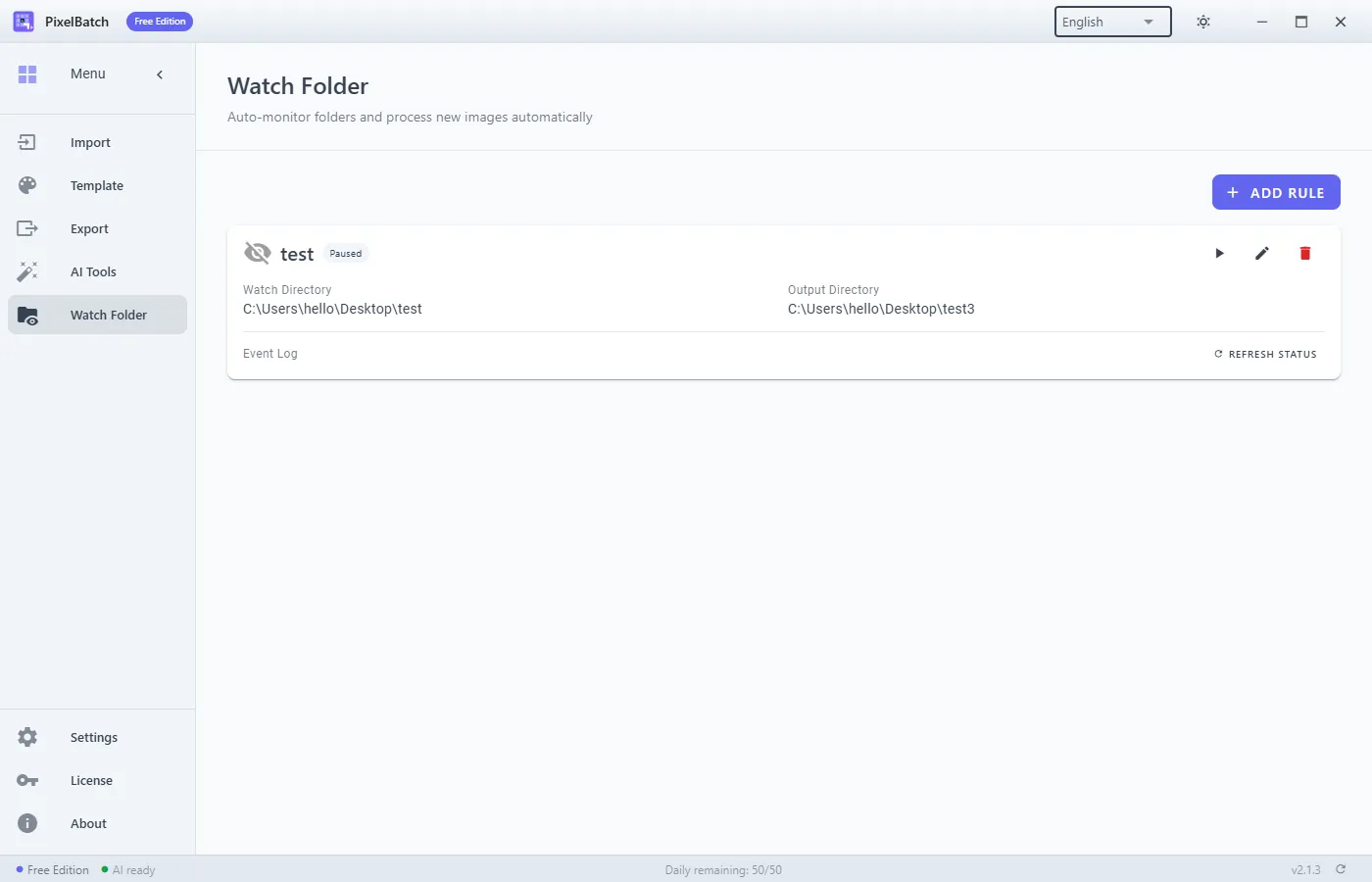
Add a rule
- Open Watch Folder → Add Rule.
- Name the rule.
- Watch directory — where new images appear.
- Output directory — must be a different path. Nesting output inside input will re-ingest exports.
- Pick the processing template.
- Toggle AI only if models are installed and you accept the slower CPU cost.
- Enable the rule.
The log lists success, failure, and quota skips.
Behavior
New files that look like supported images are picked up. Files already present when you start the rule may or may not be backfilled depending on the current build — treat Watch Folder as new drops after enable, and run a one-off Import batch for the backlog.
Quota: Free users who somehow trigger a rule hit “Daily free quota exhausted.” Pro does not hit that cap.
Do not
- Watch the Desktop root or a camera roll with thousands of non-product files.
- Point two rules at the same input.
- Use a cloud-sync folder that rewrites files every few seconds (Dropbox/OneDrive conflict copies).
Stop
Disable or delete the rule. Deleting does not delete already exported files.