PixelBatch
Getting started
Install PixelBatch and run the first listing-photo batch.
What you get
PixelBatch is a Windows desktop app. It does not open a website to process photos. You import files on disk, pick a template, optionally run local AI, then export.
The free build is not a demo of one feature. You can run the full import → template → export path. The limit is 50 images per day across batch jobs and AI tools. Watch Folder is Pro only.
Install
- Download the Windows installer (
PixelBatch-v2.1.3-amd64-installer.exe). - Install the package. Allow WebView2 if the installer asks (Windows 11 already has it).
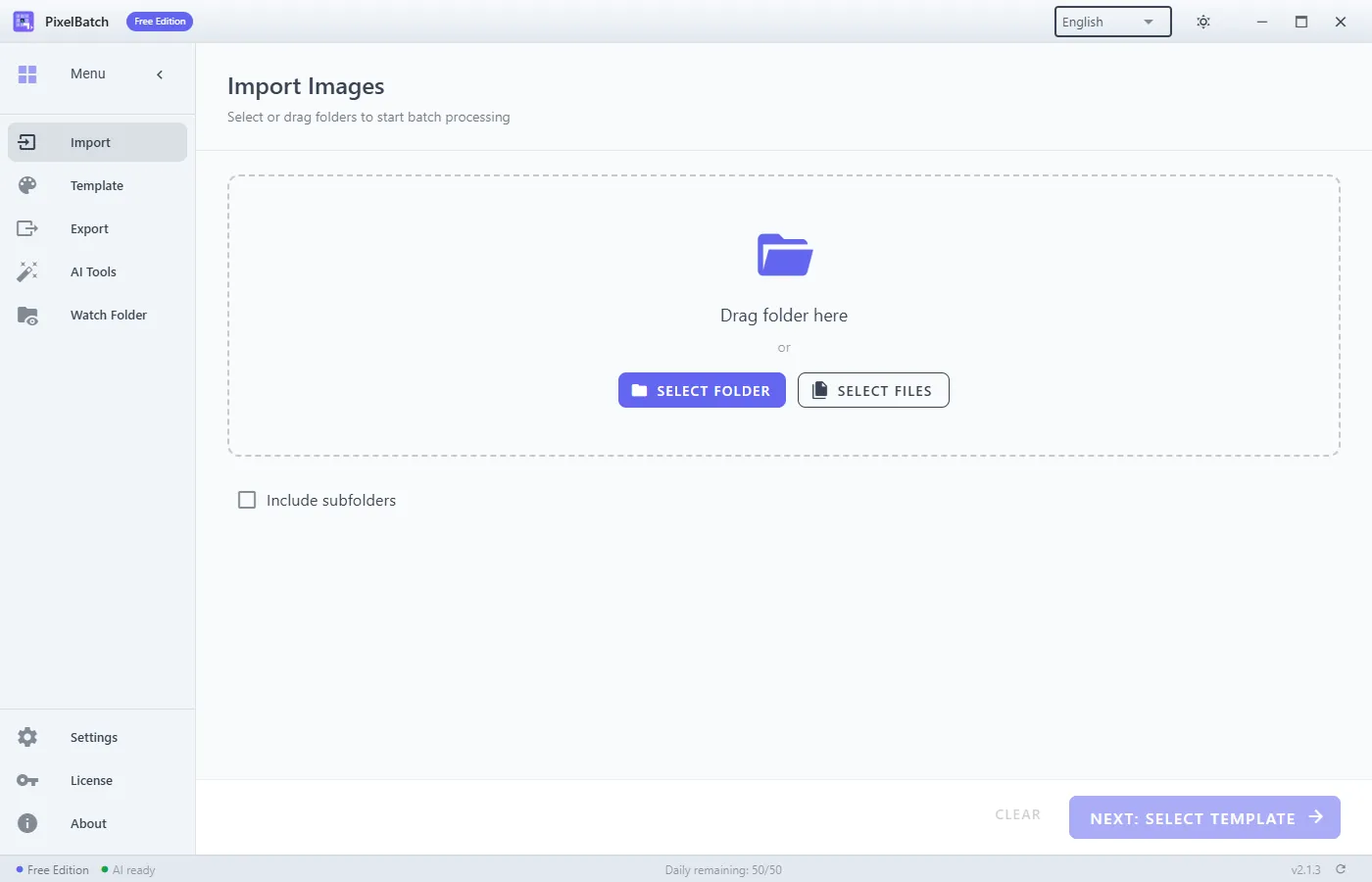
- Launch PixelBatch. The left rail is Import, Template, Export, AI Tools, Watch Folder, Settings, License, About.
Default install path is under Program Files. User data (settings, license, models) lives in %APPDATA%\PixelBatch.
First batch without AI
- Import. Drag a folder of product shots, or use Select Folder / Select Files. Turn on “Include subfolders” only if you want every nested directory flattened into one job.
- Template. Filter by platform. Start with one size (Amazon main image, Shopify square, etc.). Generate Preview before you commit a large folder.
- Export. Choose an empty output folder. Pick JPEG, PNG, or WebP. Transparent backgrounds and rounded corners force PNG.
- Run the queue. Failed files stay in the report; you can retry those only.
That path does not need the AI pack. Use it when photos already have a clean background and you only need canvas size, padding, and filename rules.
First batch with AI
- Open AI Tools. If the engine is missing, download it (~450 MB). Wait until the status says models are ready. First load can take 30–60 seconds.
- For a single photo, use the AI tabs (Remove Background, Eraser, Enhance, Smart Center, Watermark Remove).
- For a folder, enable the matching AI toggles on the template (remove background, smart center, upscale, watermark remove) and run the normal export queue.
Hair, glass, and liquid edges are weaker than a studio cutout. Soft phone shots benefit more from upscale than from pushing saturation past +50.
What not to expect
- It is not Photoshop. There is no layer stack, no liquify, no brand-kit DAM.
- It does not talk to Amazon or Shopify APIs. You still upload the exported files.
- Chinese badge text may render as
?(bitmap ASCII font). Use Latin labels. - Uninstall does not delete
%APPDATA%\PixelBatchor the models folder.